Analytics & CRM
GA4 Explorations missing data? A practical troubleshooting checklist
Missing older dates or rows in GA4 Explorations? Check retention, filters, fields and data-quality warnings with a diagnostic worksheet and worked example.
Vladlens Kecko · · 7 min read
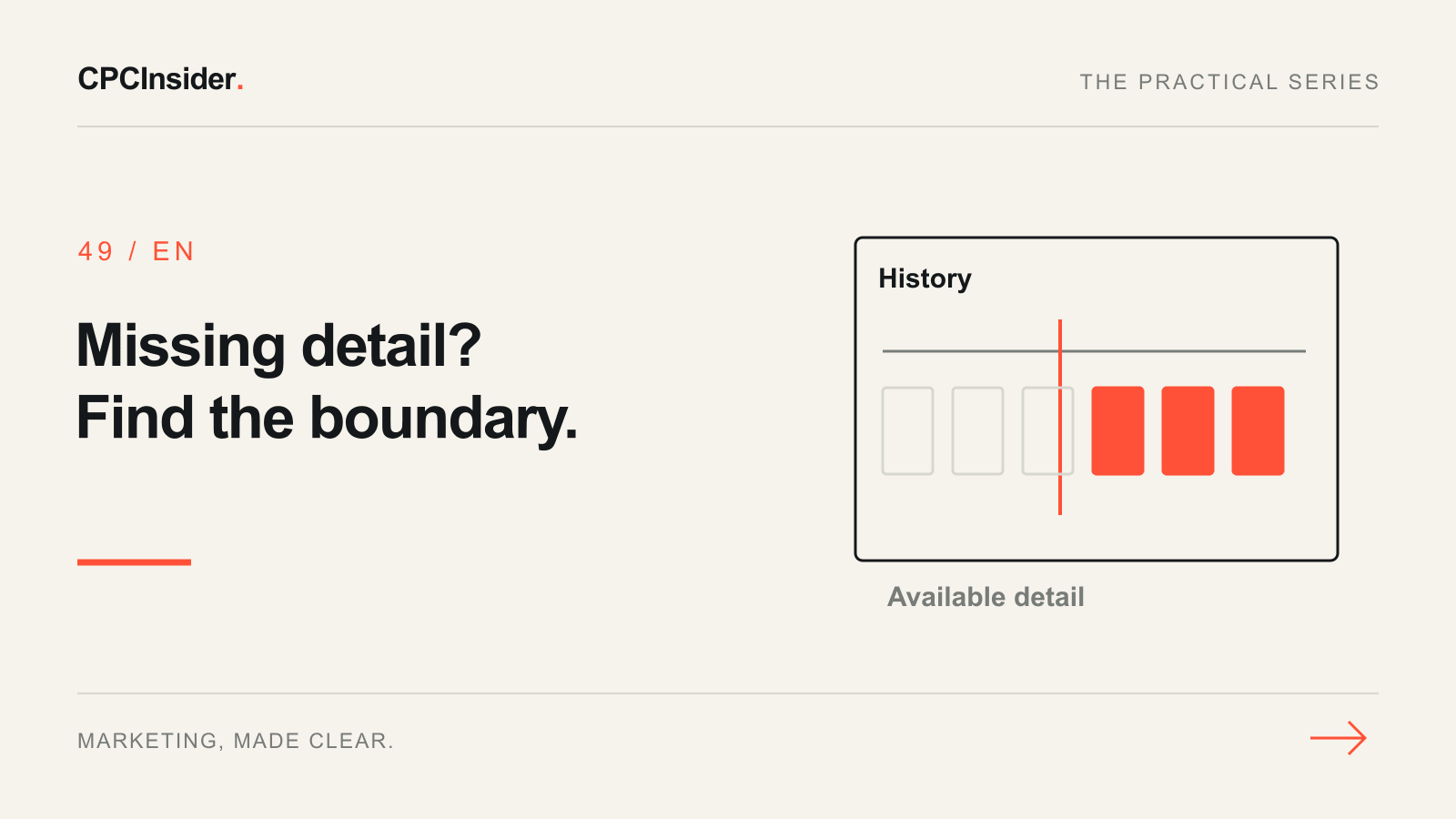
When a GA4 Exploration is empty or cannot show older dates, first identify what is missing. An unavailable month, a missing row and an event that never arrived are different problems. Changing the tracking code before separating them can create a second fault.
This workflow covers web-property reporting in Explore. It complements the GA4 audit checklist with a focused diagnosis, not a new implementation or a promise to recover deleted history.
1. Save a reproducible comparison
Duplicate the exploration or save its current configuration before investigating. Record the property, exact dates, tab, technique, dimensions, metric, filters, segments and the time you checked. Keep the original view available for comparison.
Write one specific question: “Why is June unavailable in this exploration?” is more useful than “Why is Analytics broken?” Keep the desired business decision visible too: for example, comparing enquiry journeys across a quarter.
| Symptom | First check | Avoid |
|---|---|---|
| Older dates unavailable | Data retention and when collection began | Assuming all historical data was deleted everywhere |
| A recent row is missing | Exact field, filter and segment | Changing the website tag immediately |
| A warning appears | Read the data-quality explanation | Treating every warning as the same issue |
| A new event is absent | Collection evidence and processing | Creating another event to fill the gap |
| Two views disagree | Align definitions and configuration | Forcing totals to match |
2. Check retention before extending the calendar
Google's retention documentation distinguishes retained event/user detail from standard aggregated reports. Standard properties normally offer two or fourteen months; special limits apply. Increasing retention cannot restore already deleted detail. Resetting user retention on new activity does not preserve every old event.
In Admin, find Data retention under Data collection and modification, as described in the Explorations introduction. Record what your property actually shows. Ask the accountable owner to approve a period that meets the reporting need and the business's data policy; a longer period is not automatically the right choice.
Do not change several collection settings while diagnosing one calendar limit. Keep a record of the selected period and its change date. If the required detail is gone, report the limitation instead of presenting an aggregate total as a reconstructed customer journey.
3. Remove one reporting restriction at a time
Use a simple free-form view as a control: one relevant dimension and one metric, a supported recent period, and no unnecessary segment. Add the original restrictions back individually. Record the first change that makes the result disappear.
Google's reports-versus-explorations guide explains that field support and filter behavior can differ. Exploration filter expressions are case sensitive. Check the actual value and match rule rather than copying a report search and assuming it means the same thing.
For example, investigate whether an event-name filter uses the collected spelling. Do not rename the production event merely to satisfy a mistyped diagnostic filter. Check the broader measurement plan before changing a business definition.
4. Read the data-quality information
Open the indicator and record the explanation. Google's Explorations documentation describes sampling and privacy thresholds; these are different limitations. An incompatible combination of fields is another issue. Follow the explanation shown for your actual request.
Try a simpler supported query to understand the symptom. Do not weaken consent or collect extra personal data to make a small row visible. If the result remains limited, state that explicitly in the analysis instead of calling an unseen row zero customers.
5. Work through a hypothetical example
Suppose a fictional service business wants to compare two quarters. Its standard acquisition report has totals, but its exploration cannot select the older quarter. After documenting retention, the analyst also finds that a recent form-event row disappears only when a saved filter is enabled. These are two separate findings, not one broken tag.
| Test in the example | Observation | Decision |
|---|---|---|
| Recent dates, simple view | Expected event row appears | Use as the reporting control |
| Same dates, saved filter | Row disappears | Inspect expression and actual values |
| Older quarter in Explore | Requested detail unavailable | Record historical-analysis limitation |
| Standard report for older dates | Aggregate totals available | Use only for the aggregate question it answers |
| Configuration change proposed | Owner has not approved it | Preserve original and document next action |
This is a diagnostic teaching example, not a CPCInsider result. No missing customer count has been inferred. If you cannot verify a cause, mark the finding unresolved and name the evidence still needed.
6. Check collection only when the evidence points there
If a newly completed action is absent from a minimal reporting view, investigate the real journey. Use the audit's controlled test: did the website complete the action, did the intended tag receive it, and did the business system record it? Respect consent and normal processing.
Use the internal-traffic filter guide when exclusions may explain a test visit. Differences between advertising platforms belong in the separate GA4 and Google Ads reconciliation workflow, not in a retention fix.
Close with an evidence log
Record symptom, exact configuration, control result, confirmed cause or limitation, owner and next check. Preserve the distinction between missing collection, unavailable historical detail and a restricted report. Repeat the original view after any approved correction and annotate the date; do not promise that the correction changes history.
Our tracking, attribution and CRM service helps turn these checks into usable business reporting. Book a free 30-minute founder-led growth review and receive a short written plan with three priorities. There is no obligation to hire CPCInsider; implementation scope is agreed separately.
About the author
Free founder-led growth review
Can you trust the numbers behind your decisions?
In a focused 30-minute conversation, we review your advertising, website and sales follow-up together. Afterwards, you receive a short written action plan you can use with your own team or with ours.
Your biggest growth gaps
See where your ads, website or follow-up may be losing potential customers.
Your next 3 priorities
Get a ranked action list with the reason for each recommendation and what to check next.
A practical starting plan
Leave with clear next steps for your team, plus our recommendation if you want help implementing them.
Continue reading
GA4 audit checklist: 18 checks before you trust your reports
A hands-on GA4 audit for website owners and marketing teams: verify what is collected, trace real customer actions and separate tracking faults from reporting differences.
GA4 internal traffic filter: exclude your team without losing customer data
Exclude staff visits from GA4 safely. Follow the setup steps, test office and remote traffic, and use a troubleshooting checklist before activating the filter.
Advertising measurement: build a GA4 and CRM measurement plan
Build a GA4 measurement plan with event definitions, Google Ads goals and CRM outcomes. Use a practical worksheet and pre-launch checks.